Jira Cloud integration
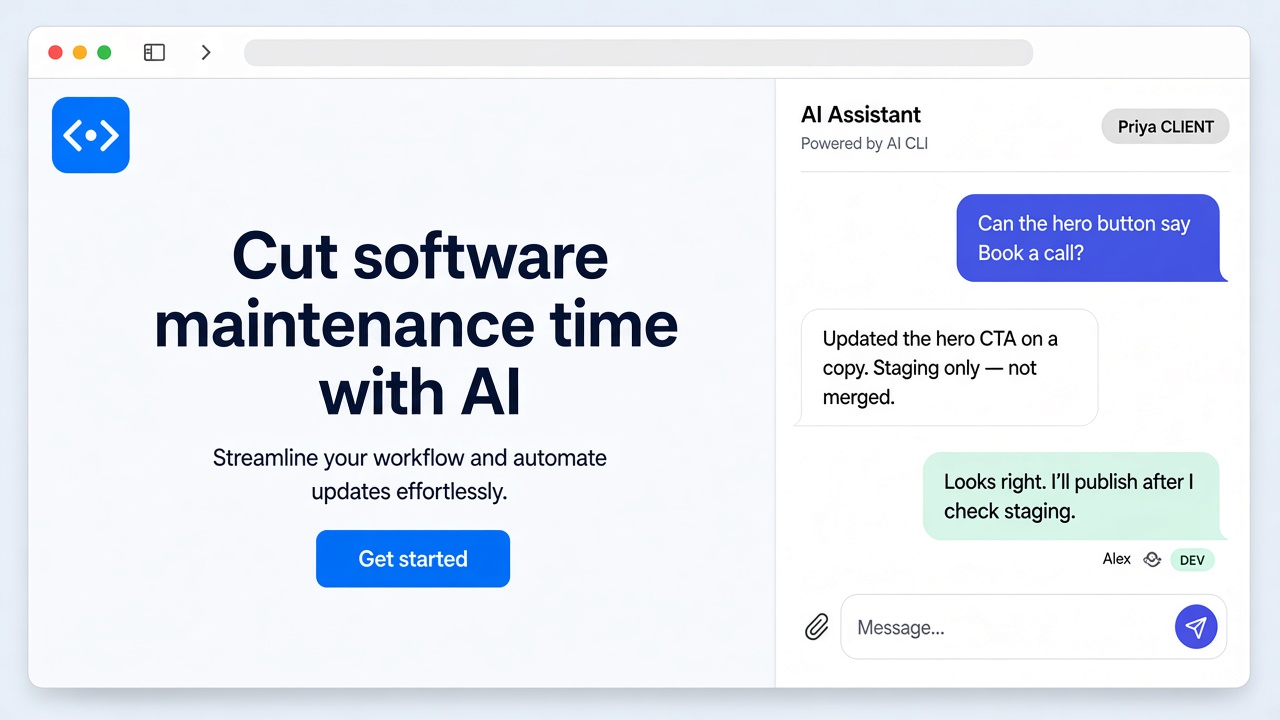
Label a ticket. Get a live preview. Add the label butterneck to a ticket and assign it to someone whose computer has the project. The ticket becomes the request, and the change is built by the developer's own AI agent on their computer. A live preview link comes back on the ticket, and the requester can keep refining it in plain words. A developer decides what goes live.
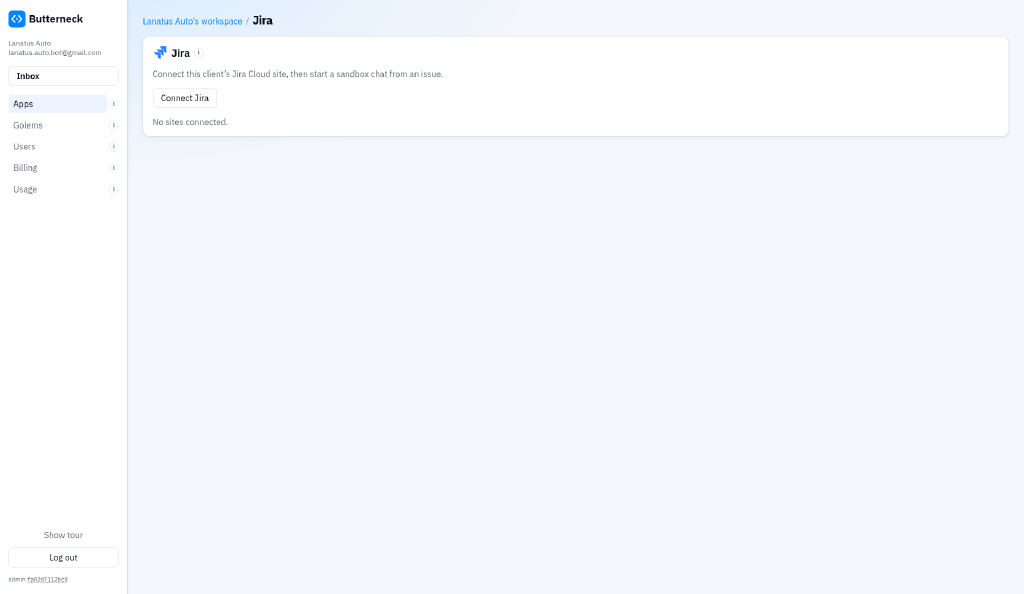
How it works Connect Jira once Sign in with Jira Cloud and choose your site. Link a Jira project to your app. Paste Butterneck’s address into Jira, so Jira can tell Butterneck when a ticket is created or updated. A labeled ticket starts the chat Add the label butterneck. Assign the ticket to someone whose computer has the project. Butterneck opens a private copy of the project, named after the ticket. The title, description, comments, and attached files become the request. The link goes back on the ticket When the AI is done, a short note and a link to the preview are added to the ticket. The full conversation stays on the live copy. Updating that same ticket later does not open a second copy. What it looks like Connect Jira Cloud once from your workspace. The full conversation stays on the live copy. The ticket gets a short note and the link. What it does not do It does not merge, open pull requests, or deploy. Your team publishes the usual way. The AI runs through the coding assistant on the assignee’s computer (Cursor, Claude Code, or Antigravity), under that assistant’s own data terms. Updating the same ticket later does not open a second copy. Read more: the blog · Jira privacy · Jira terms · Pricing